Witnessing
From MedITEX - Wiki
(Difference between revisions)
| Line 2: | Line 2: | ||
<p> </p> | <p> </p> | ||
<p>1. Open the <strong>Report Editor</strong> and build a query with the fields needed in the Witnessing template.</p> | <p>1. Open the <strong>Report Editor</strong> and build a query with the fields needed in the Witnessing template.</p> | ||
| − | <p> | + | <table border="0"> |
| + | <tbody> | ||
| + | <tr> | ||
| + | <td> | ||
| + | <p>[[Image:witness2.jpg|none|740px|thumb|middle|link=http://wiki.meditex-software.com/images/witness2.jpg|]]</p> | ||
| + | </td> | ||
| + | </tr> | ||
| + | </tbody> | ||
| + | </table> | ||
<p>2. Save and execute the query.</p> | <p>2. Save and execute the query.</p> | ||
<p> </p> | <p> </p> | ||
Revision as of 08:58, 28 January 2019
To add a Witness report to a MedITEX action, follow these steps:
1. Open the Report Editor and build a query with the fields needed in the Witnessing template.
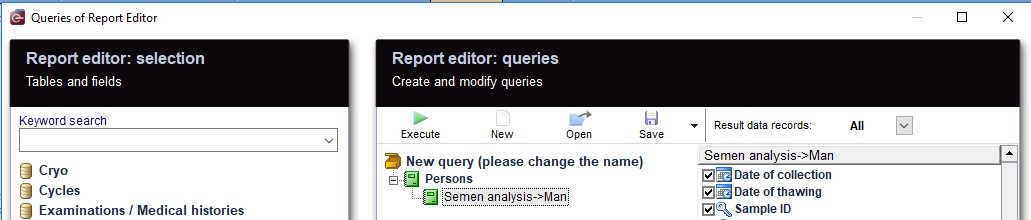  |
2. Save and execute the query.
3. Under Word module tabsheet, the Additional placeholders button displays a menu with Witnessing fields/bookmarks.
4. Choose the MedITEX action to which the Witnessing template should be assigned, under Utilize as menu.
5. Create or customize the template by clicking on the Create/customize template button.